How to Put a Countdown in the Dynamic Island with an AI-Generated Background
If you've landed here from a search like "iPhone countdown app with AI backgrounds and Dynamic Island", this is the setup you're after: a countdown that lives at the top of your screen in the Dynamic Island, ticking down days, hours, minutes and seconds over whatever app you're using, with a background image that an AI generates from a one-line description of your event.
This guide does both with DayDrop in about three minutes. The screenshots are real captures from an iPhone and the iOS Simulator. I'm the developer, so I'll also be straight about what the feature can't do.

The expanded Dynamic Island, captured in the iOS Simulator: 18 days to a Hawaii trip, with the AI-generated beach background behind it.
Step 1: Create the countdown
Download DayDrop (free, no account). Tap +, name the event, pick a category, and set the date.
If the moment matters down to the hour, say a flight or a launch, turn on Specific time. The Dynamic Island and the Lock Screen then count hours, minutes and seconds, not just days.
Step 2: Generate the AI background
In the event's AI Background section, describe a mood in the AI Mood box: "hammock between palm trees at sunset", "snowy cabin with warm windows", "stadium under floodlights". Or leave it blank and DayDrop picks a scene from the event's name and category. Then tap Generate.
DayDrop sends the description to an image model and returns a picture a few seconds later. Don't like it? Change a word or two and generate again. The same image is used everywhere the event appears: the detail screen, the widgets, the Lock Screen card and the Dynamic Island.
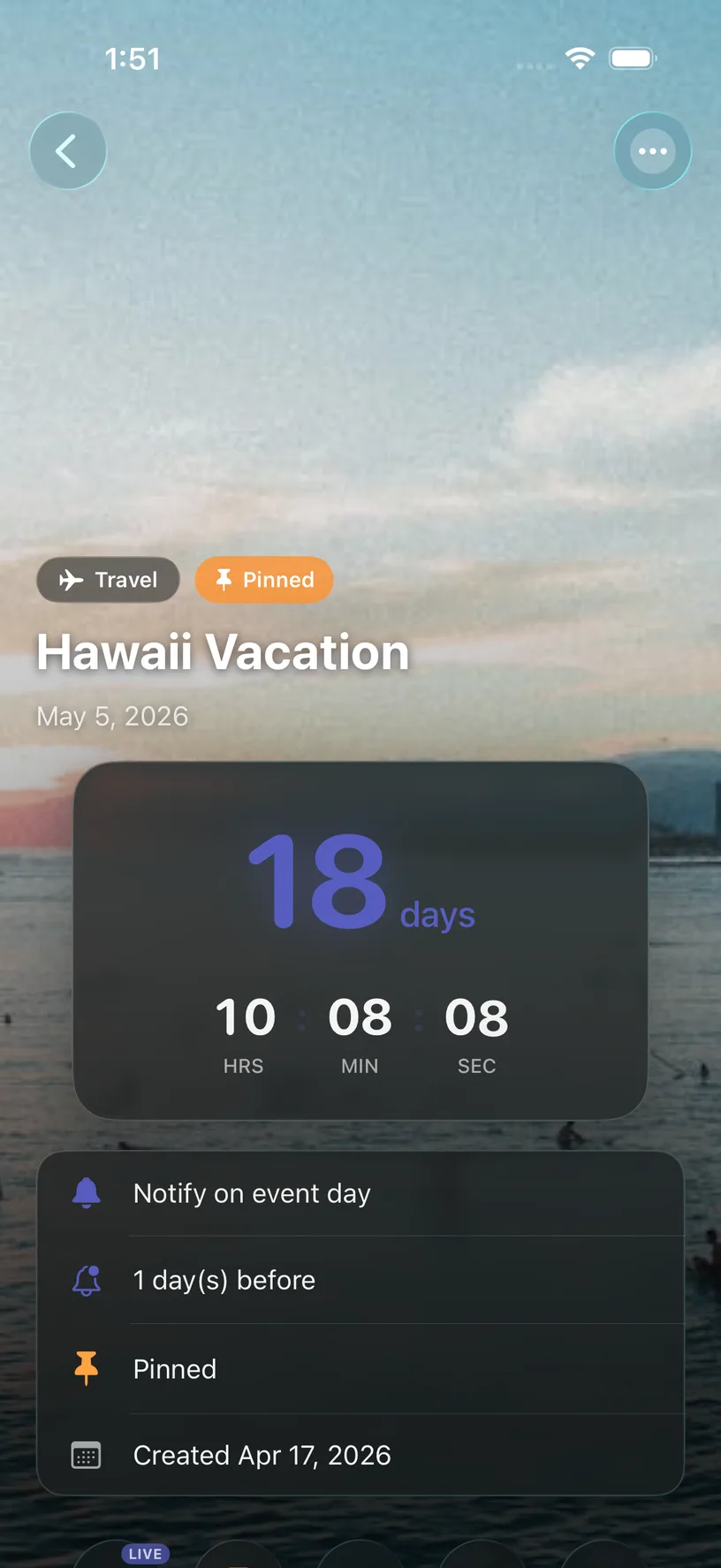
An AI-generated background on the event screen. One sentence in, this out.
Step 3: Send it to the Dynamic Island
Open the event and tap Go Live.
The countdown appears in the Dynamic Island right away, as a small pill with the days left and your event's icon. Long-press the Island to expand it: the full countdown with hours, minutes and seconds, and a progress ring that fills as the day gets closer. The same card shows on the Lock Screen, so you see it before you even unlock.
To stop it, open the event and tap End Live.
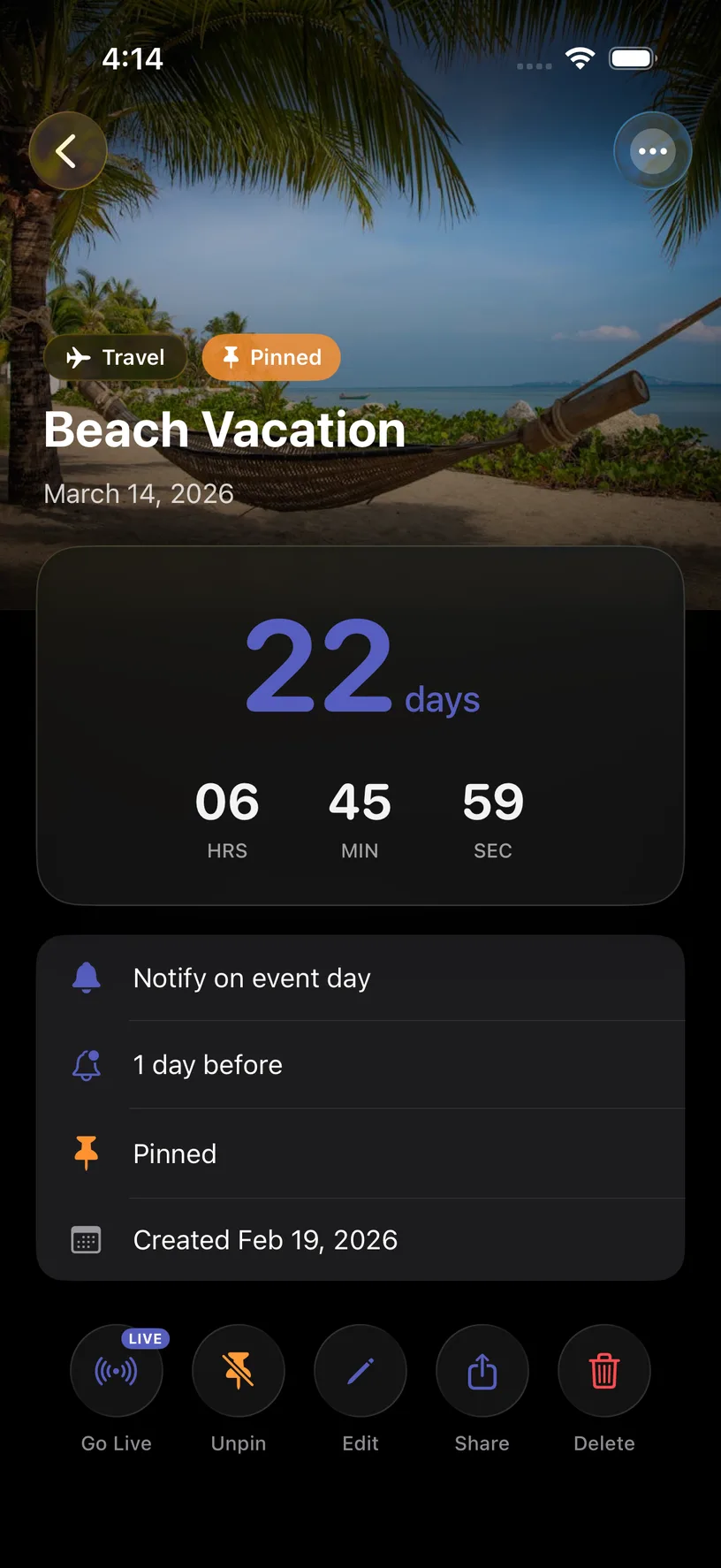
Go Live is at the bottom of every event. One tap.

The compact view, here over the Settings app: a travel icon and 18d, visible from any app. Long-press the Island for the expanded view at the top of this page.
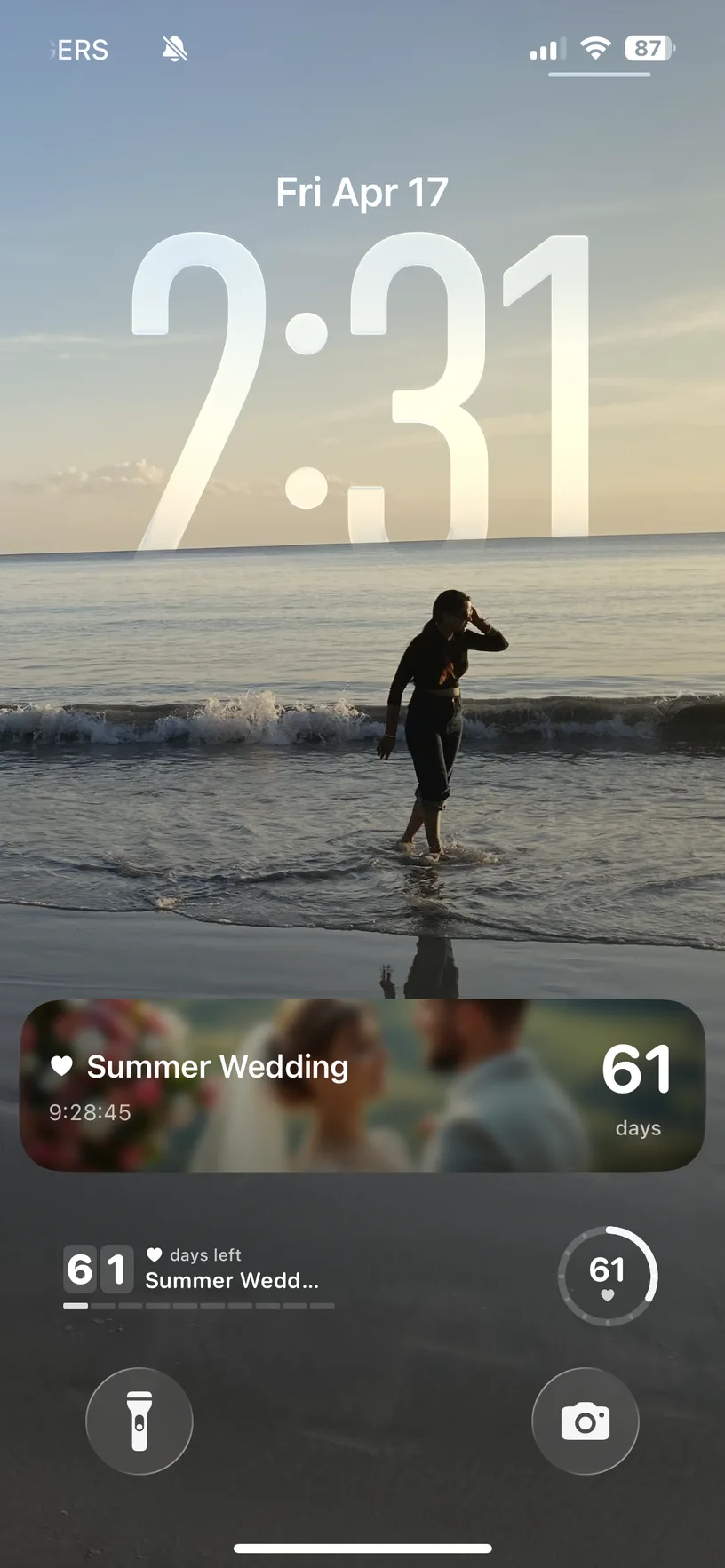
The same Live Activity on a real iPhone Lock Screen, where it shows as a full card: 61 days to a wedding.
What it can and can't do
Dynamic Island needs an iPhone 14 Pro or later. On older iPhones, Go Live still works: the countdown appears as a Live Activity on the Lock Screen, you just don't get the pill at the top of the screen.
iOS ends every Live Activity after about eight hours. That's an Apple rule for all apps, not something DayDrop controls. If the countdown has disappeared from the Island, open the event and tap Go Live again. For a countdown you want to see all day without thinking about it, the Lock Screen and Home Screen widgets are the better tool; the Island is for the days and hours that matter.
AI backgrounds and the Live Activity are DayDrop Premium ($1.99/month, $12.99/year with a one-month free trial, or $24.99 once). Creating countdowns, photo backgrounds and the Small and Medium Home Screen widgets are free. If you only want the Island for one big event, the monthly plan covers it.
The AI makes a picture, not a photograph of your event. It's good at scenes and moods, less good at specific people or text. For a birthday, a real photo from your library usually beats it.
Why combine the two?
A countdown you have to open an app to see is a countdown you forget. The Dynamic Island puts the number where you already look a hundred times a day. The AI background is what makes you want to look: a wedding counting down over a photo of your venue feels different from a number in a grey box. In the roundup of countdown apps I compared, none of the others listed a Live Activity with a progress ring, which is why I built it.
Three minutes from download to Dynamic Island.
Free to start. No account. Premium trial for the AI and Live Activity features.
Download DayDropFrequently Asked Questions
Which iPhones have the Dynamic Island?
iPhone 14 Pro and Pro Max, and every iPhone 15, 16 and 17 model. On other iPhones running iOS 18 or later, DayDrop's countdown still appears as a Live Activity on the Lock Screen.
Why did my countdown disappear from the Dynamic Island?
iOS automatically ends Live Activities after roughly eight hours. Open the event in DayDrop and tap Go Live again. Widgets don't have this limit.
Does the Dynamic Island countdown update in real time?
Yes. The expanded view counts days, hours, minutes and seconds live, and the progress ring fills as the date approaches. The compact pill shows the days remaining.
Can I use my own photo instead of an AI image?
Yes. Any photo from your library works as the background, on the free plan. AI generation is a Premium feature.
Can I run more than one countdown in the Dynamic Island?
One at a time. For several events side by side, use the Medium or Large multi-event widget on the Home Screen.