How to Put a Christmas Countdown on Your iPhone
Christmas Day 2026 falls on Friday, December 25. If you want the number of days left on your phone every time you glance at it — not buried in an app — iOS can show a Christmas countdown in four places: the Lock Screen, the Home Screen, the Dynamic Island, and StandBy mode.
This guide sets up all four with DayDrop in about two minutes. Every screenshot below is a real, unedited iPhone capture. Works on iOS 18 and iOS 26.
Days or "sleeps"?
Kids count sleeps; adults count days. They are almost the same number: the sleeps left tonight equal the days left until the morning of December 25, which is what a countdown app shows when the event date is Christmas Day with no time set. If you want the countdown to end on Christmas Eve instead (presents under the tree, the Christmas Eve box), make a second event for December 24. DayDrop shows "Tomorrow" on the 24th and "Today!" on the 25th rather than a zero, which reads better on a child's Lock Screen.
Step 1: Create the Christmas Countdown
Download DayDrop from the App Store (free, no account needed).
Tap +, name the event "Christmas", and set the date to December 25.
For the background, pick the Holiday category, use your own photo — or type a prompt like "cozy Christmas tree with warm lights" and let DayDrop's AI background generator make one for you.
Step 2: Put It on Your Lock Screen
Long-press your Lock Screen and tap Customize.
Tap the widget area below the clock, search for DayDrop, and add the countdown widget.
Tap Done. That's it — the days-left number now lives under your clock.
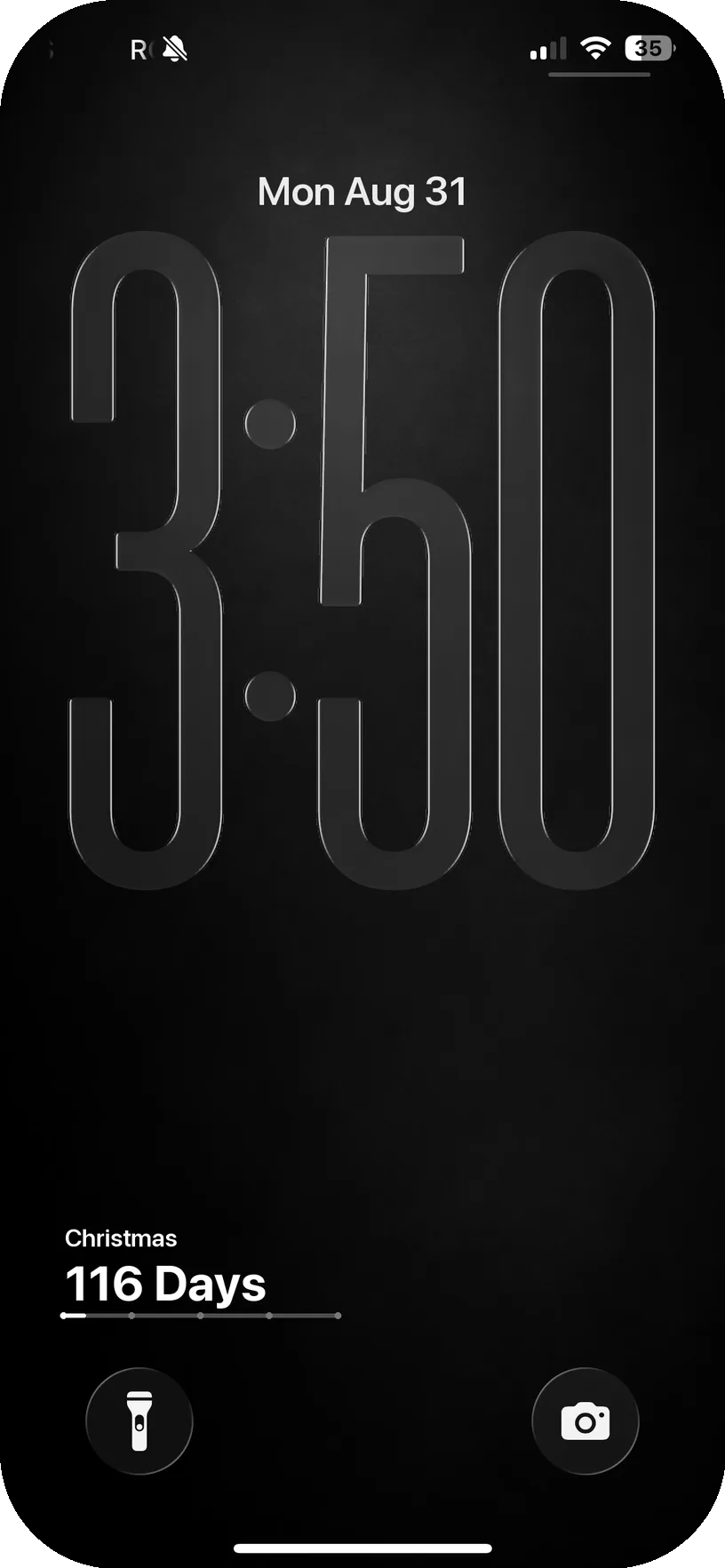
The Lock Screen widget with its progress bar — every glance at your phone shows the countdown.
Step 3: Add the Home Screen Widget
Long-press your Home Screen until apps jiggle, then tap +.
Search for DayDrop and choose Medium or Large.
The widget shows your Christmas photo or AI background, the days remaining, the date, and a progress bar of how much of the wait is already behind you.
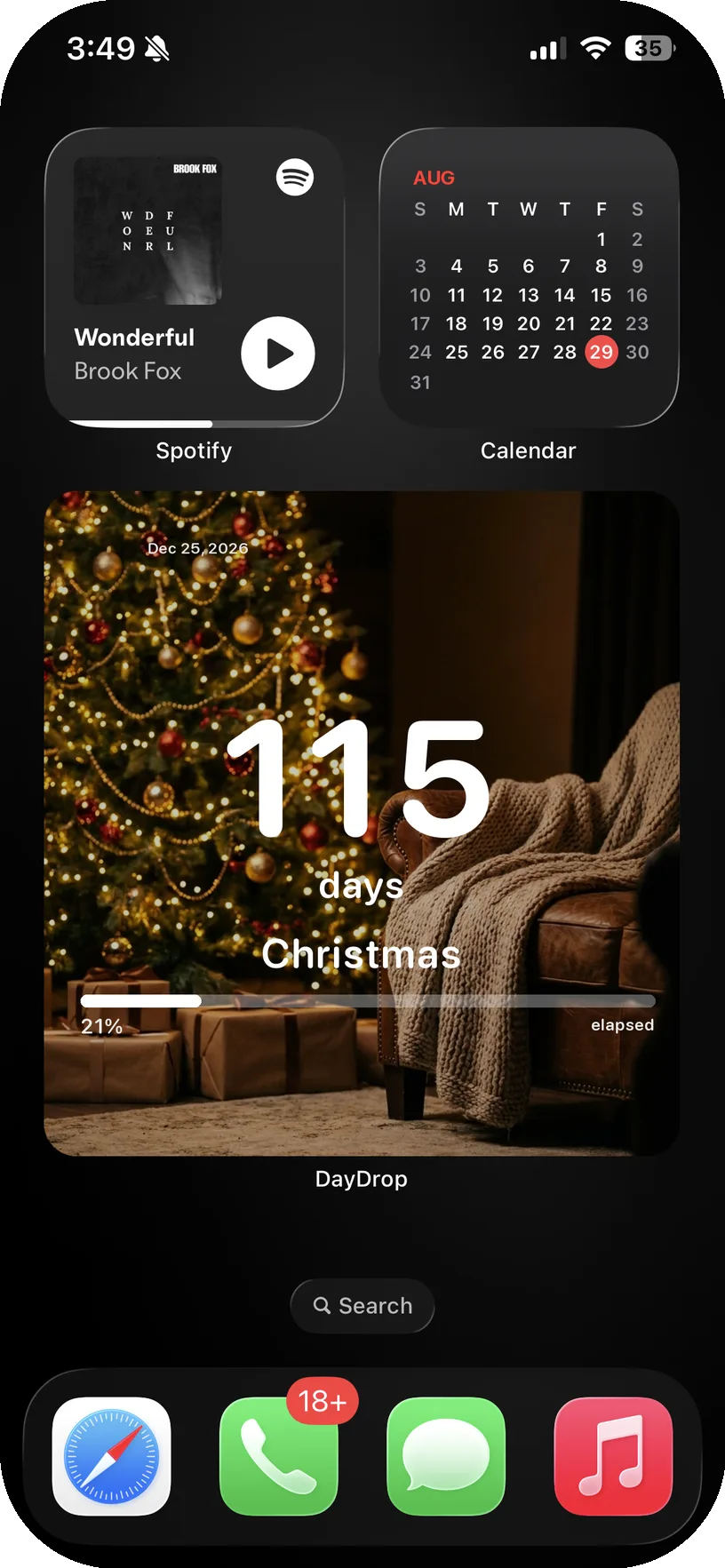
A real Home Screen: DayDrop's large widget with an AI-generated tree background, sitting alongside Spotify and Calendar.
One detail people love: the "21% elapsed" progress bar. Watching the bar fill up toward December is half the fun — especially for kids counting down.
Step 4: Keep It in the Dynamic Island
On iPhone 14 Pro and later, DayDrop can run the Christmas countdown as a Live Activity in the Dynamic Island — days, hours, and minutes ticking at the top of your screen, over whatever app you're in. None of the other countdown apps we compared in our roundup list this feature.
Open DayDrop, tap your Christmas event, and choose Start Live Activity.
The countdown appears in the Dynamic Island and on the Lock Screen as a rich card. Long-press the Island to expand it.
Live Activities, Lock Screen and Large widgets are DayDrop Premium ($1.99/month or $24.99 lifetime). The Home Screen Small and Medium widgets are free.
Step 5: Show It on the Nightstand (StandBy)
Put the iPhone on a charger on its side and it enters StandBy. Swipe left on the widget panel, press and hold, tap + and add the DayDrop widget. The Christmas countdown then glows on the bedside table all night, which is exactly where a child will check it first thing in the morning. StandBy needs iOS 17 or later and a charger; it works with any MagSafe or Lightning/USB-C charger as long as the phone is horizontal.
Bonus: Count Down the Whole Season at Once
December isn't just Christmas. DayDrop's Large multi-event widget shows several countdowns in one place — Christmas Eve, Christmas, New Year's Eve, a winter trip — each with its own image, stacked on a single widget. Create each event, add the Large widget, and it rotates the season for you.
And when you put your iPhone on a charger sideways, StandBy mode turns it into a bedside Christmas countdown clock — genuinely great in a kid's room throughout December.
111 days is shorter than it sounds.
Free download. No account. Set up in two minutes.
Download DayDropFrequently Asked Questions
How many days until Christmas 2026?
Christmas Day 2026 is Friday, December 25, 2026. A countdown widget shows you the live number without doing the math — DayDrop updates it automatically every day.
Can my iPhone show a Christmas countdown without opening an app?
Yes — in four places at once: the Lock Screen below the clock, the Home Screen as a widget, the Dynamic Island as a Live Activity, and StandBy mode while charging.
Can I use my own photo as the background?
Yes. Use any photo from your library — last year's tree, the kids in pajamas — or generate one with AI inside the app.
Does the countdown update by itself?
Yes. Widgets refresh automatically through the day and roll over at midnight. The Live Activity shows the days left with a progress ring, and in the final 24 hours it ticks down hours, minutes and seconds to Christmas morning. No manual refreshing.
How many sleeps until Christmas 2026?
The same as the days shown above, counted from tonight. A countdown set to December 25 with no time shows "Tomorrow" on Christmas Eve and "Today!" on Christmas morning.
Can I count down to Christmas Eve instead?
Yes. Create a second event for December 24. Many families keep both: one for the Christmas Eve box, one for the morning.
Does the Christmas countdown work on iPad?
Yes. DayDrop runs on iPad with the same Home Screen and Lock Screen widgets plus an ExtraLarge widget, and the countdown syncs between iPhone and iPad over iCloud with Premium.
Will the countdown reset for next year?
Turn on repeat yearly when you create the event and it rolls over to Christmas 2027 automatically on December 26.
Where else can I put countdowns?
See our full guide to adding countdown widgets on iPhone — Home Screen, Lock Screen, and StandBy — or compare apps in the best countdown apps for 2026.